Enhancements to Overbooking
Stay is enhanced to allow users without overbooking permissions to perform an overbooking by entering the credentials of another user who has the necessary permissions. Such users are displayed an alert message and can enter the credentials of another authorized user to complete the overbooking.
Previously, users without overbooking permissions could not complete an overbooking by entering the credentials of another authorized user.
Feature Setting
The following new feature setting must be enabled to use this feature:
-
Name: Overbooking Authorization
-
Comments: License is not required
Permissions
The following existing permissions must be assigned:
-
OverbookHotelAvail
-
OverbookHotelAvailLimited
-
OverbookRateAllocations
-
OverbookRoomType
-
OverbookRoomTypeLimited
-
Stay_OverbookGroupBlock
When the feature setting is enabled, users are alerted when they attempt to create a reservation that exceeds the available room inventory and results in an overbooking.
Book a Reservation Screen
When users select a room type with no available inventory in the Book a Reservation screen with the Include unavailable rates checkbox selected and click Add to Cart, the selected room type is validated to check if there are available rooms. When no rooms are available for the room type, the Overbooked pop-up screen appears that alerts users that the room type is overbooked for the selected dates.
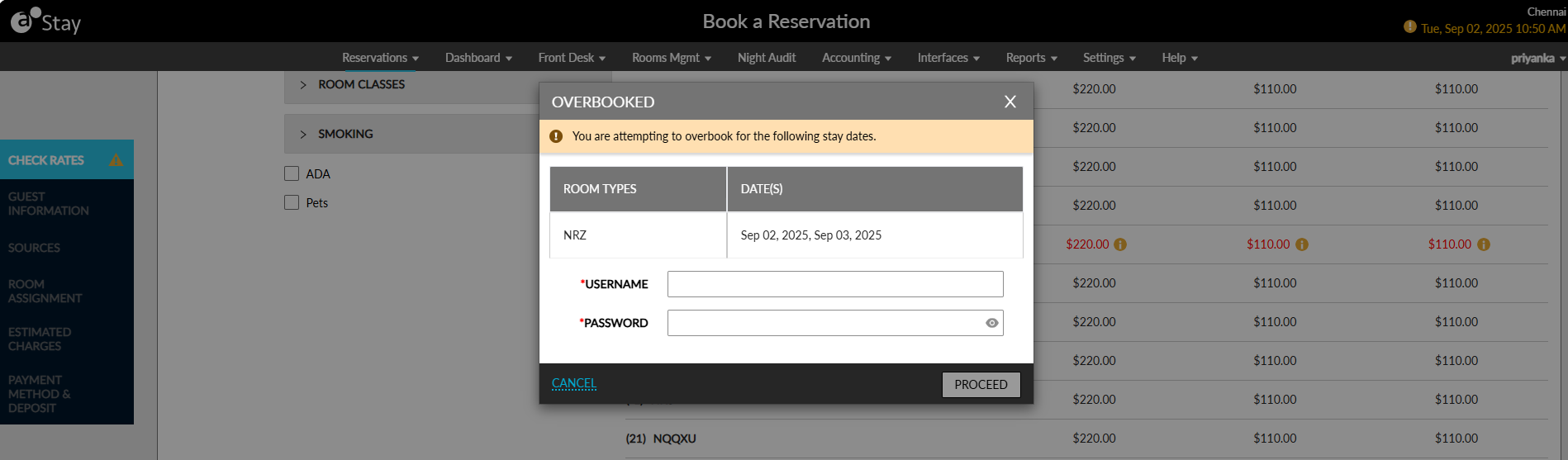
Users without the OverbookHotelAvail permission can enter the credentials of another authorized user in the Username and Password fields. On clicking Proceed, the credentials are validated, and the booking is added to cart upon successful validation. The booking is not added to cart when the credentials are invalid or when the permission is not assigned and the following message is displayed: You do not have the permission to overbook the room type. Enter credentials of an authorized user to proceed.
The Overbooked pop-up screen is displayed when either a selected room type or the property itself is overbooked.
Sample Scenario 1
Consider two room types, King and Queen, with a maximum of 5 rooms available for each. When a user tries to book a reservation for King room type after the 5 rooms are already booked, the Overbooked pop-up screen is displayed since the King room type is overbooked. When the entered credentials belong to a user without the necessary permission, the following message is displayed: You do not have the permission to overbook the room type. Enter credentials of an authorized user to proceed.
Sample Scenario 2
Consider a property with 10 rooms, where 10 reservations have already been created for the King room type. In this case, the property has reached its maximum capacity of 10 rooms. When users book a reservation, the King room type will not be displayed for selection in the Book a Reservation screen. Only the Queen room type will be displayed. When users select the Queen room type, the Overbooked pop-up screen is displayed. When the entered credentials belong to a user without the necessary permission, the following message is displayed: You do not have the permission to overbook the property. Enter credentials of an authorized user to proceed.
Overbooking for Group Reservations
When the Overbooking Group Block feature setting is enabled and users create reservations for a group whose blocked rooms are picked up, the Overbooked pop-up screen is displayed, and the following actions are performed:
|
Scenario |
Description |
|---|---|
|
User without Stay_Overbook_Groupblock permission performs overbooking. |
Users enter their credentials in the Overbooked pop-up screen and click Proceed. When the credentials are validated successfully, the booking is added to cart. When the user is not assigned the permission, the following message is displayed: You do not have the permission to overbook the group block. Enter credentials of an authorized user to proceed. . |
|
User with Stay_Overbook_Groupblock permission performs overbooking. |
Users enter their credentials in the Overbooked pop-up screen and click Proceed. When the credentials are validated successfully, the booking is added to cart. When the user is not assigned the permission, the following message is displayed: You do not have the permission to overbook the group block. Enter credentials of an authorized user to proceed. . |
When the Overbooking Group Block feature setting is disabled, the permission is not validated, and users can create reservations using the room type when available at the property-level.
Records Created for Overbooking
Whenever an overbooking is performed in a property, a record is created in the Reservation History section of the reservation and the Audit Log screen (Reports ➜ Audit Log) for the entity type, Reservation, that displays the following details:
Overbook Count and Room Type
The details of the count of overbooking performed for the day is displayed in the following format:
-
Format: Added Overbooking Details/Reservation/<YYYY-MM-DD>/Overbooked Count-<Count>, Room Type-<Room Type>.
-
Example: Added Overbooking Details/Reservation/2025-08-06/Overbooked Count - 1, Room Type-KNG.
These details are displayed for each of the overbooked nights in the reservations.
Logged In User and Authorizer
The details of the user whose credentials were used to authorize the overbooking is displayed in the following format:
-
Format: Added Overbooking Details/ Approved User- <ApprovedUsername>, Initiated User- <InitiatedUsername>.
-
Example: Added Overbooking Details/ Approved User- Jane, Initiated User- <ChrisG>
Overbooking Event Report
A new Dynamic report, Overbooking Event, has been added to the Guests/Reservations section of the Reporting screen (Reports ➜ Dynamic Reports) to allow users to track the overbookings performed for a day.
This report can be generated for the following report generation parameters:
|
Parameters |
Description |
|---|---|
|
Report Name |
Overbooking Event. |
|
Property |
This is a single-select drop-down list that displays the properties available for a tenant. By default, the logged-in property is selected. |
|
Created Date - Start |
Users can select a start date to filter and view reservations that were booked on or after the selected date. This field allows users to select past dates up to the current property date. Future dates cannot be selected. By default, the current property date is selected. |
|
Created Date - End |
Users can specify an end date to filter and view reservations that were booked on or before the selected date. This field allows users to select past dates up to the current property date. The duration between the selected start and end dates can be a maximum of 31 days. By default, the current property date is selected. Based on the selected date range, the overbookings created during the period are displayed. |
|
Group By |
This is a single-select drop-down list that allows users to select from the following options:
|